UCC Database and Directories
UCC Database and Directories is the denominational, web-based database that contains records for all UCC congregations and authorized ministers. The database is managed by the MESA Research and Data Unit and is used by conferences, associations, and local churches to provide directory and statistical information for the printed Yearbook, Access UCC, and Church Finder.
If you are authorized to access information in the Database and Directories system and need an account to be created, please send an email to research@ucc.org.
TRAINING RESOURCES
Instructional Videos
People Record FAQs
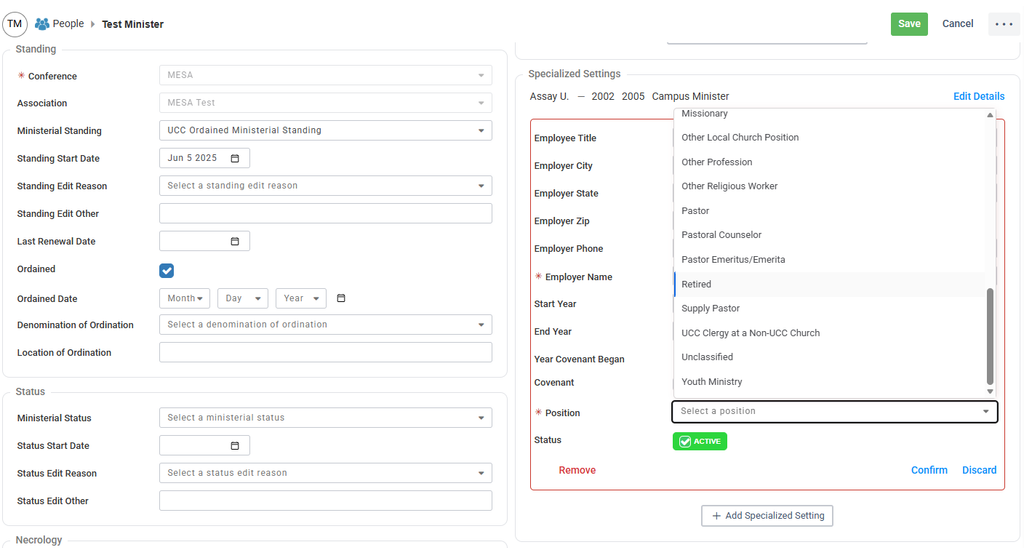
Retirements are tracked alongside specialized settings in the database. To mark a minister as retired, then, simply click the “edit” button in the upper righthand corner of their people and click “Add Specialized Setting” in the specialized settings pane. Select “Retired” from the position listing dropdown and type “Retired” or “N/A” into the required “Employer Name” field.
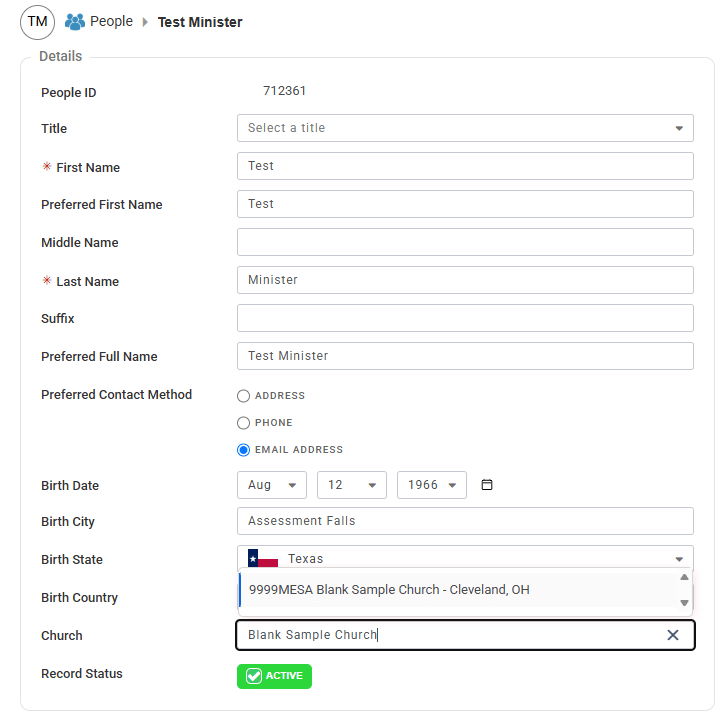
Covenants are tracked in the specialized settings pane alongside other position details. Before adding the record, however, one will want to ensure that the minister’s local church membership and Conference/Association standing are up to date. Church membership is recorded in the details pane in the upper lefthand side of the screen and can be updated by clicking “edit” in the upper righthand corner, typing the church ID or congregation name into the “Church” field, and selecting the church from the drop-down menu. Conference and Association standing information are tracked in the standing pane just below. If the individual is outside of your conference, they will need to be transferred.
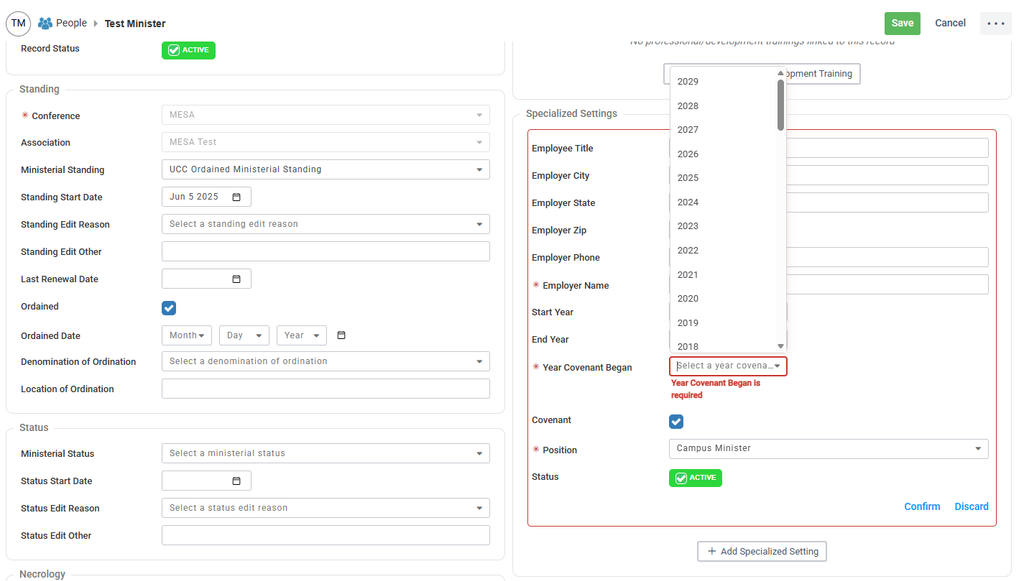
Once the church membership and standing have been verified, locate the specialized settings pane and select “Add Specialized Setting” to make a new record or “Edit” next to an existing record to update it. This will open the input fields for the position. Click the “Covenant” checkbox and specify the year the covenant began.
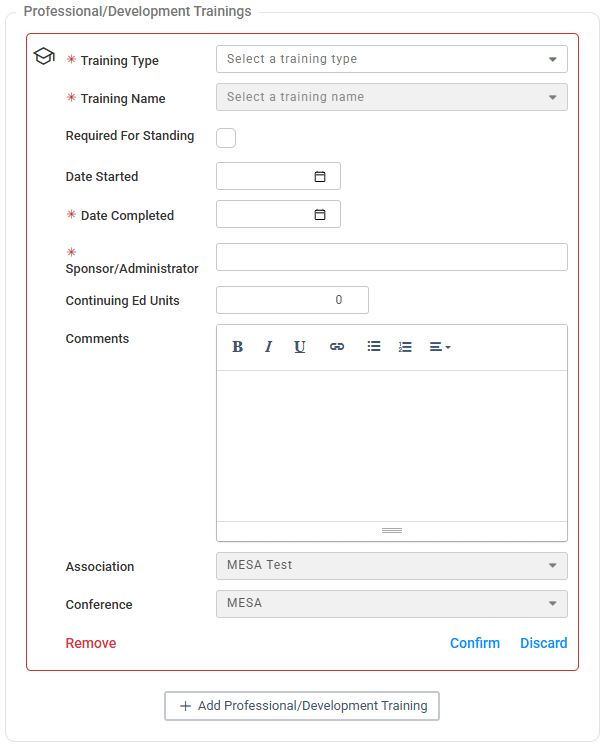
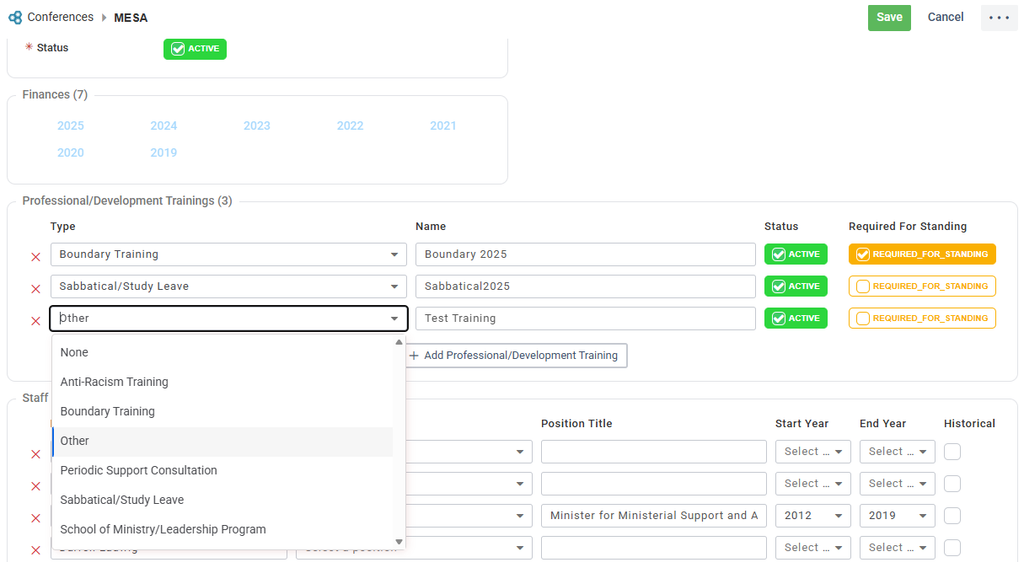
Trainings are tracked in the Professional/Development Trainings pane on the righthand side of the individual’s people page. To create a new record, click the “Add” button and enter the relevant training information (including type, name, completion date, and sponsor/administrator).
If the desired trainings are not available in the people page dropdown, they can be added from the Conference page. To do this, locate the “Professional/Development Trainings” pane on the conference page and click “edit” in the upper righthand corner. Click “Add Professional/Development Training” and select the Type (e.g., “Periodical Support Consultation”) and specify the name. You may also indicate whether certain trainings are required for standing by selecting the corresponding checkbox to the right. Once you have completed entering the required information, click “save” and return to the people page. The new training should now be available in the dropdown menu.
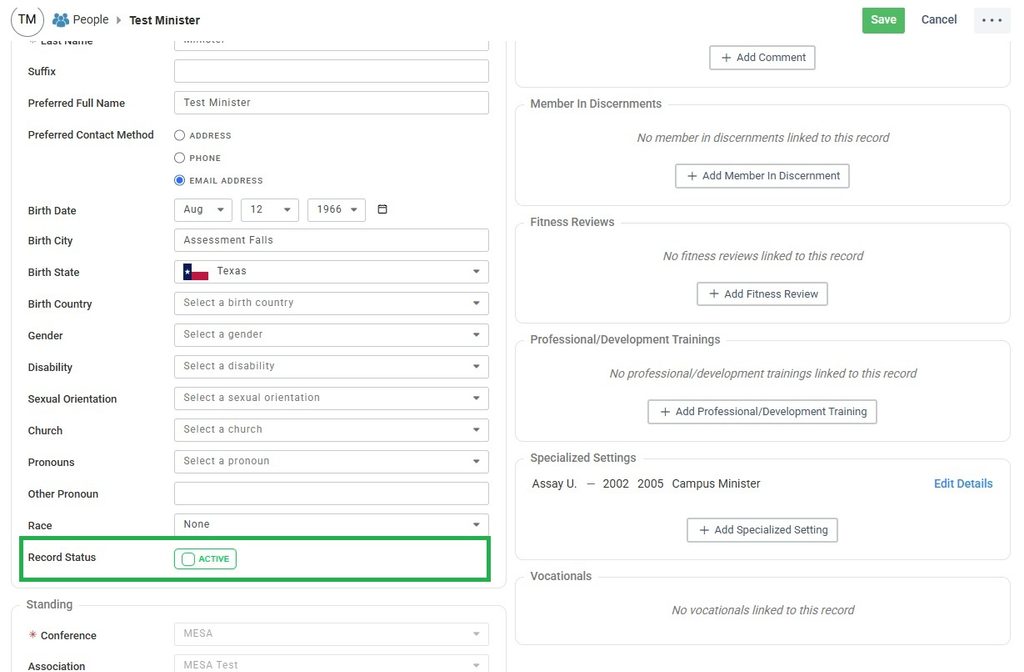
Marking a record dormant does not indicate a person is no longer involved in active ministry (i.e., a retired minister), but rather that they no longer hold authorization with a UCC Association or are no longer serving the UCC.
Reasons for marking a record dormant include the following:
- Standing has been terminated or resigned
- The individual is deceased
- The individual does not hold authorization and is no longer serving the UCC
- An individual with No UCC standing is no longer serving in any capacity that is recorded in the database (e.g., They are no longer serving a committee that you track in the Data Hub, they are a lay person who was serving as a local church pastor but are no longer, etc.)
To mark them inactive in the database, simply uncheck the “active” box next to “Record Status” in the Details pane and save.
Church Record FAQs
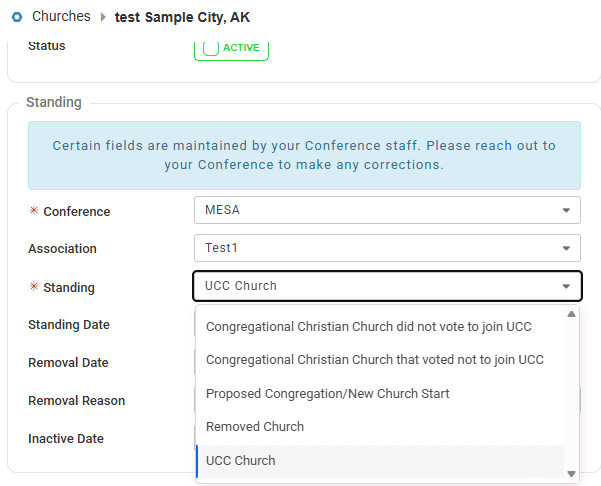
Churches should be removed if any of the following circumstances come to pass:
- They have closed and ceased to exist as a legal entity
- Note: If a congregation has permanently ceased meeting for worship but is still working through the process of closure, they should be marked inactive in the standing pane but retain their standing until completion.
- They have completed a merger with another congregation
- They have formally withdrawn from the UCC
Once it’s clear that this has taken place, the church should be marked as removed. To do this, click on the standing dropdown in the standing pane and select “Removed Church.” Next, enter the official removal day under “Removal Date” and select a reason from the “Removal Reason” dropdown.
Adding a Church
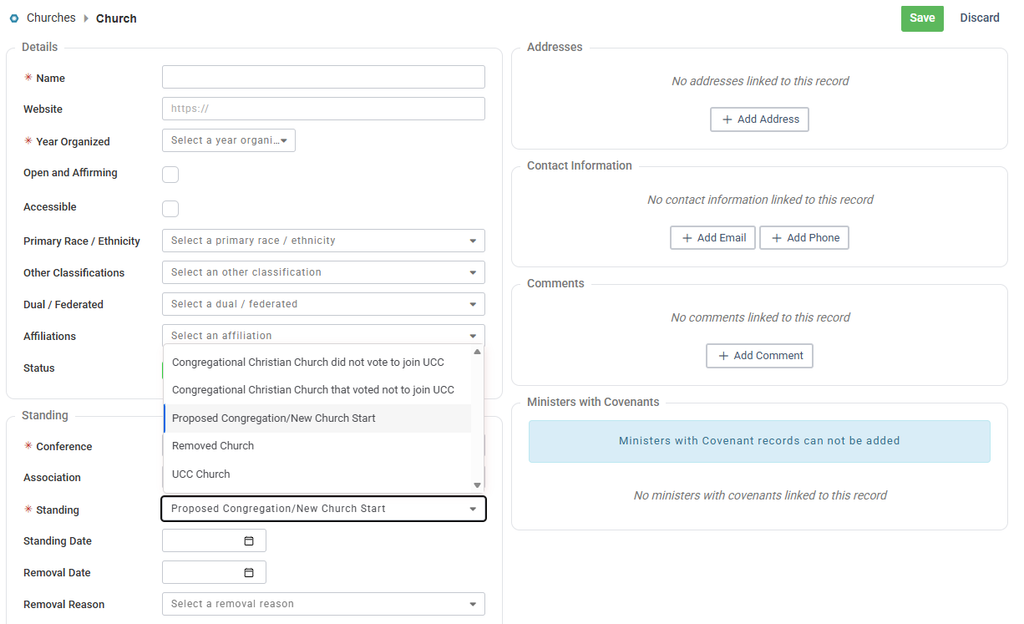
A faith community should be entered as a new start or proposed congregation when the Conference/Association or the committee tasked with the discernment process votes to accept them as a Church in Discernment.
To add the church, navigate to the “Churches” search page and click “Add New” in the upper righthand corner. This will create a blank record into which the congregation’s name, organization year, address, and other information may be entered. Under “Standing”, select “Proposed Congregation/New Church Start.” Once all the information has been entered, click “Save” in the upper righthand corner.
Standing Changes
If the church closes or withdraws before attaining standing in the UCC, the record should be marked as removed (see process above).
If the Conference/Association votes to confer Local Church Standing on a Church in Discernment, the standing should be changed to “UCC Church” and the day of the vote entered under “Standing Date.”
A church’s name should be listed using their legal name. A “doing business as” can be added using the following format: “Legal Name dba Functional Name”. For example, a church with the legal name of “First Congregational UCC of Any City” that does business as “First Church” can be listed as “First Congregational UCC of Any City dba First Church.”